
Introduction: Revolutionize Your Design Workflow 🚀
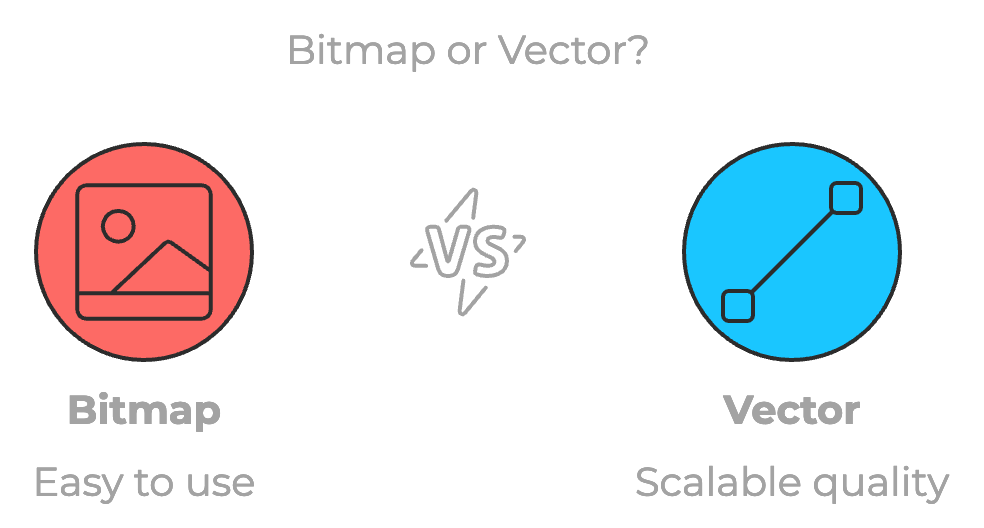
The Vectorize Bitmap Figma Plugin is revolutionizing how designers transform raster images into scalable vector graphics. As a powerful addition to Figma’s toolkit, this essential plugin offers seamless conversion capabilities that every designer needs. Whether you’re working on logos, illustrations, or complex designs, this comprehensive guide will show you how to master the Vectorize Bitmap Figma Plugin for professional-quality results.
Are you tired of dealing with pixelated images that don’t scale well? This powerful tool streamlines your workflow while maintaining professional quality, making it an indispensable asset in any designer’s toolkit.
What Makes Vectorize Bitmap Special? ✨
The Vectorize Bitmap plugin stands out by offering an intuitive approach to image conversion. Unlike traditional vectorization tools, it’s specifically designed to work seamlessly within Figma’s ecosystem, providing designers with a smooth, integrated experience that doesn’t interrupt their creative flow.
Real-World Use Cases 🎯
Brand Identity Development
Transform hand-drawn logos into professional vector graphics that maintain their quality across all sizes. Perfect for startups and rebranding projects where scalability is crucial.
Digital Illustration Enhancement
Convert sketches and artwork into clean vector illustrations that can be easily modified and scaled for various digital platforms.
Icon Set Creation
Quickly convert multiple bitmap icons into vector format for consistent, professional-looking design systems.
How to Use Vectorize Bitmap Like a Pro 📝
- Installation and Setup
- Navigate to the Figma Community
- Search for “Vectorize Bitmap”
- Click “Install” to add it to your plugins
- Basic Conversion Process
- Select your bitmap image
- Right-click and choose Plugins > Vectorize Bitmap
- Adjust trace settings for optimal results
- Advanced Features
- Color recognition for complex images
- Batch processing capabilities
- Custom trace profiles for different image types
Pro Tips for Better Results 💡
Optimize Your Source Images
Before vectorization, ensure your bitmap images are:
- Clean and high-contrast
- Free from unnecessary noise
- Properly sized and oriented
Perfect Your Settings
Experiment with different trace settings for:
- Path simplification
- Corner smoothness
- Color accuracy
- Detail preservation
Key Takeaways 🎉
- Seamless integration with Figma workflow
- Professional-quality vector conversion
- Time-saving batch processing
- Customizable trace settings
- Preserve original design integrity
Featured Highlights 🌟
- Intelligent Path Detection
- Real-time Preview Options
- Advanced Color Recognition
- Smart Curve Smoothing
- Rapid Batch Processing
Tips for Optimal Results 🔍
- Start with high-quality source images
- Adjust trace settings incrementally
- Use appropriate color modes
- Preview results before finalizing
- Save preferred settings as presets
Common Applications 🎨
Design Teams
- Create scalable assets
- Maintain brand consistency
- Develop design systems
Freelancers
- Quick logo conversions
- Illustration vectorization
- Client asset preparation
Agencies
- Batch process multiple assets
- Create professional deliverables
- Streamline workflow
Common Applications 🎨
Design Teams
- Create scalable assets for multi-platform use
- Maintain brand consistency across different mediums
- Develop comprehensive design systems
- Streamline asset management workflows
- Convert legacy bitmap assets efficiently
Freelancers
- Quick logo conversions for client deliverables
- Illustration vectorization for digital platforms
- Client asset preparation and optimization
- Batch process multiple project files
- Create scalable design elements
Agencies
- Batch process multiple client assets
- Create professional deliverables at scale
- Streamline workflow automation
- Maintain consistency across team projects
- Reduce manual vectorization time
Conclusion: Elevate Your Design Game 🏆
The Vectorize Bitmap plugin for Figma is more than just a conversion tool – it’s a game-changer for designers who value efficiency and quality. By automating the vectorization process while maintaining precise control over the results, it empowers creators to focus on what matters most: bringing their creative vision to life.
Discover more from AI Founder Kit
Subscribe to get the latest posts sent to your email.