🚀 Quick Verdict
It identifies high-engagement hooks with surprising accuracy. While the in-app editor feels a bit stiff compared to desktop software, the speed of turning one link into ten clips is hard to beat. It’s best for founders who want to be on every platform without spending hours in a timeline.
| Overall Score | 8.5/10 |
| Best For | Podcasters and webinar hosts |
| Tested Plan | Pro Trial (7 days) |
| Testing Period | 7 days |
| Biggest Strength | Accurate hook detection |
| Biggest Weakness | Clunky manual editor |
| Best Alternative | Vizard.ai |
🤔 What Is OpusClip?
OpusClip is a specialized tool designed to chop long videos into short, vertical clips for TikTok, Reels, and Shorts. It uses AI to analyze your footage, find the most interesting talking points, and reframe them so the speaker stays centered.
The tool solves the problem of “content rot” where great long-form videos sit on YouTube with no reach. By automating the clipping and captioning process, it helps small teams maintain a daily posting schedule on social media platforms.
⚙️ How We Tested OpusClip
We used the Pro Trial for 7 days, which gave us 90 minutes of processing time. Our testing focused on three tasks: converting a 30-minute Zoom interview into 10 vertical clips, applying custom brand fonts to captions, and exporting a project to Adobe Premiere Pro for final touches.
✨ Key Features (What Actually Stood Out)
The tool focuses on speed and distribution for content creation workflows. Here is what worked best during our sessions.
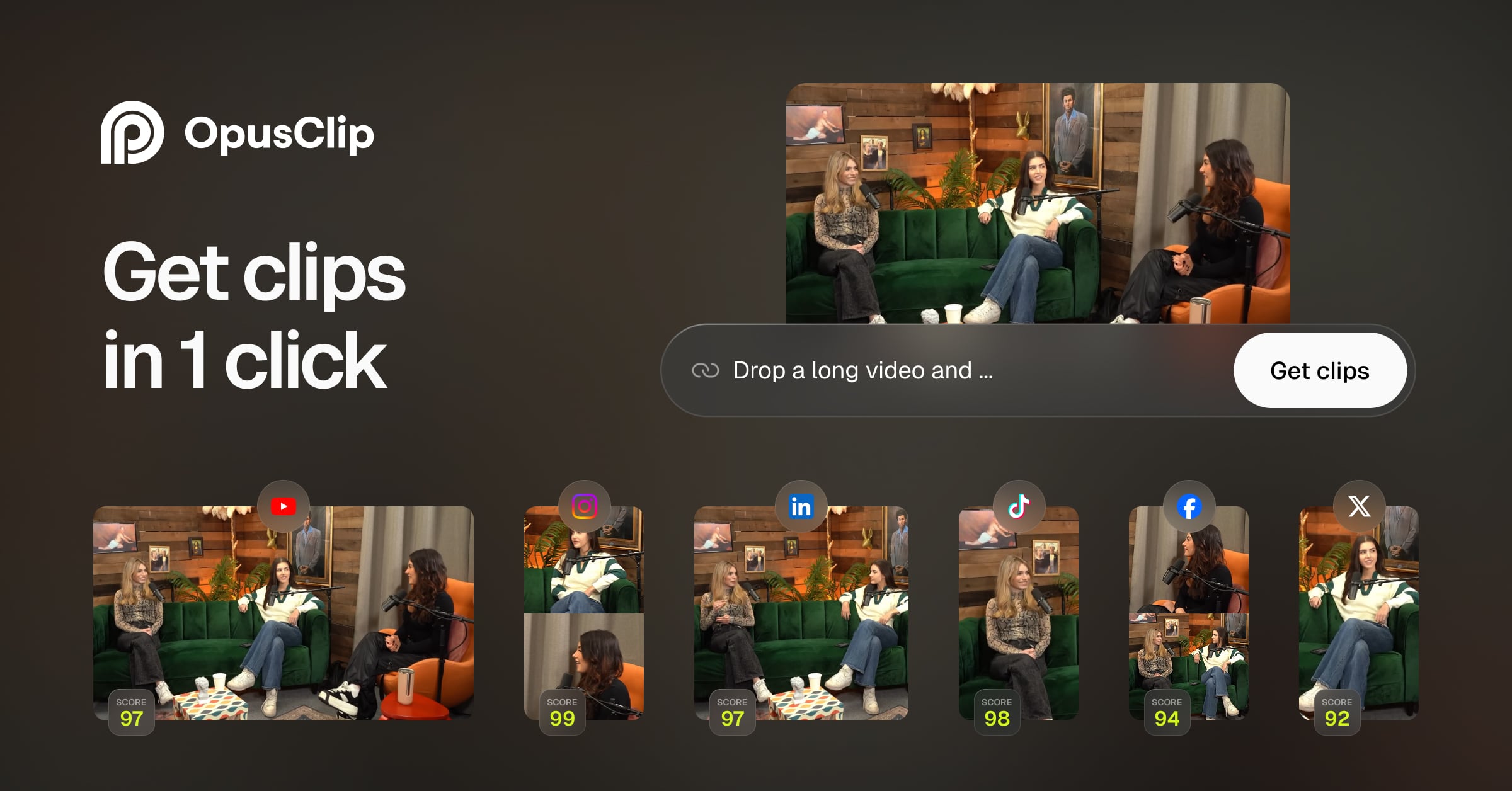
- AI Virality Score — It gives every clip a score from 1 to 99 based on how likely it is to trend. We found the high-scoring clips actually did have better pacing and clearer hooks.
- Active Speaker Detection — The AI tracks faces and keeps the speaker in the 9:16 frame. It handled two-person interviews well, though it occasionally flickered during fast back-and-forth talk.
- AI B-Roll — It automatically adds relevant stock footage over your speech. While some clips were too literal, it effectively covered up awkward jump cuts.
- Auto-Captions — The captions are highly accurate and support emojis. You can change the style of all clips at once, which saves a lot of clicking.
- XML Export — This is a major win for pros. You can export the AI-generated clips into Premiere Pro or DaVinci Resolve to do more detailed editing.
💰 OpusClip Pricing — Is It Worth It?
The pricing is based on “processing minutes” rather than the number of clips you make. If you upload a lot of long videos that only yield one or two good clips, you might burn through credits quickly. Note that the Free Forever plan has a 60-minute monthly limit but includes a watermark.
| Plan | Price | Best For | Watch Out For |
| Free Forever | $0 | Testing the AI | Includes watermark |
| Starter | Varies | Individual creators | Limited source imports |
| Pro | Varies | Agencies and teams | Credit caps per month |
Our pick: Pro Plan — The ability to export to Premiere Pro and schedule posts directly to social accounts makes it the only viable choice for a serious business workflow.
🧪 What We Found During Testing
When we dropped in a YouTube link, the AI took about 12 minutes to process a 30-minute video. It produced 12 clips, and 8 of them were actually usable without any edits. The AI B-Roll feature was a surprise; it found a clip of a coffee cup when the speaker mentioned a morning routine, which looked professional. However, the manual editor is frustrating to use for precise timing. If you need to trim a clip by just half a second, it feels like fighting the interface.
A founder in our community who runs a podcast told us the AI usually picks the right hooks but sometimes cuts off the speaker mid-sentence if they don’t pause clearly.
⚠️ Limitations We Found
- Editor Lag — As of late 2024, the timeline editor can be slow to respond when you have many captions or B-roll layers active.
- Literal B-Roll — The AI sometimes picks stock footage that feels a bit cheesy or too literal for the context of a business discussion.
- Credit Expiration — Depending on your plan, unused minutes might not roll over, so you have to use them or lose them each month.
⚔️ OpusClip vs Competitors
There are several tools trying to solve the clipping problem, but they differ in how much control they give you.
| Competitor | Pick it instead of OpusClip if… |
| Vizard.ai | You want a more flexible built-in editor for manual design tweaks. |
| CapCut | You prefer manual control and want access to more trendy transitions. |
| Spikes Studio | You are primarily a gaming creator and need clips optimized for Twitch. |
👍 Pros & Cons
| ✅ Pros | ❌ Cons |
| Fastest way to find viral hooks | Manual editing is quite limited | B-roll can look like generic stock |
| Exports directly to pro editors | Processing can take 10+ minutes |
| Supports many languages | Free version has a watermark |
🎯 Who Should Use OpusClip (And Who Shouldn’t)
✅ Use it if you:
- Have a backlog of long-form video content you aren’t using.
- Need to post daily shorts but don’t have time to edit.
- Run a podcast or interview series with clear talking points.
❌ Skip it if you:
- Create highly cinematic or artistic content that requires custom pacing.
- Need a professional-grade editor — use Descript instead.
- Only post once or twice a month, making the subscription cost hard to justify.
❓ Frequently Asked Questions
Is OpusClip actually free?
There is a free-forever plan that gives you 60 minutes of processing time per month, but your exported videos will have a watermark.
How many clips does it generate from one video?
It depends on the content, but for a 30-minute podcast, we typically saw between 8 and 15 clips generated.
Can I remove the watermark?
You must upgrade to a paid Starter or Pro plan to export videos without the OpusClip logo.
Does it work for gaming videos?
Yes, it has a specific layout for gaming that keeps both the gameplay and the face-cam in the frame.
Can I export to Premiere Pro?
Yes, the Pro plan allows you to export an XML file which you can open in Premiere Pro to keep all your layers and cuts.
Is the Pro plan worth it for founders?
If you post more than 3 times a week, the time saved on captioning and reframing makes the cost much lower than hiring a freelancer.
Looking for more tools like this? See all social-media tools we’ve reviewed →
Discover more from AI Founder Kit
Subscribe to get the latest posts sent to your email.